Export WhatsApp Plus Chats Easily in 2025
Learn the fastest and safest way to export WhatsApp Plus chats in 2025 with media, backup tips, and expert tricks.
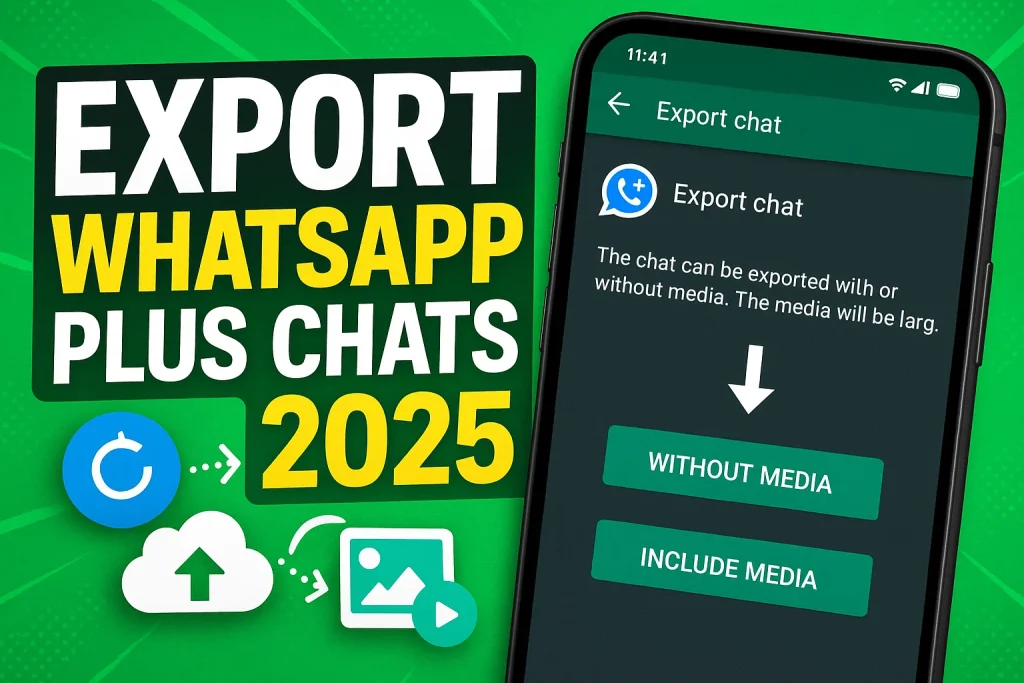
Ever wished you could export WhatsApp Plus chats without losing your favorite conversations, photos, or voice notes? In 2025, with so many users shifting devices or cleaning up their storage, keeping your messages safe has become more important than ever. Whether it’s for data backup, a device change, or simply to protect your privacy, understanding how to export your chats properly can save you a lot of regret later.
If you’ve been using the latest version of WhatsApp Plus, you already know it offers more customization than the official app—but with that freedom comes a few risks. Many users worry about data loss, account bans, or compatibility issues when switching phones. This guide has been carefully written to help you avoid those headaches, giving you clear, safe, and updated steps that actually work in 2025. You’ll feel confident knowing you’re not risking your personal information or wasting time on outdated tricks.
Unlike generic tutorials floating around, this one focuses on real, tested methods to export WhatsApp Plus chats in 2025 efficiently. With clear instructions, privacy-conscious advice, and insights drawn from hands-on experience, you’ll learn everything you need without the fluff. Think of this as your trusted roadmap—made to help you back up, move, or secure your chats like a pro.
Can You Export Chats from WhatsApp Plus in 2025?
Yes, you can export chats from WhatsApp Plus in 2025, but the process works a little differently compared to the official WhatsApp. Since WhatsApp Plus is a modified version of WhatsApp, it doesn’t connect directly with Google Drive backups or Meta’s servers. Instead, it stores your data locally, which means you’ll need to manually export chats or copy them to another device or cloud folder. This method still keeps your messages safe, as long as you follow the right steps.
Before exporting, it’s important to understand the risks of using modified apps like WhatsApp Plus. Outdated versions or unsafe APKs can lead to data loss, account bans, or even privacy leaks. Always update WhatsApp Plus, verify the source, and create a local backup before trying any export method. Done carefully, exporting WhatsApp Plus chats in 2025 is safe, practical, and gives you full control over your chat data without depending on official servers.
Before You Begin: Preparing for Chat Export
Getting ready to export WhatsApp Plus chats in 2025 isn’t complicated, but skipping the basics can cause errors or even data loss. A few quick checks before starting can save you hours of frustration later.
Check App Version, Storage, and Permissions
Start by confirming your WhatsApp Plus version is the latest one. Outdated versions can cause bugs or fail to export chats correctly. Head to your app settings and check for updates. Next, review your device storage—exported chats, especially with media, can take a lot of space, so free up some memory beforehand. Also, verify that WhatsApp Plus has storage and media permissions enabled in your phone’s settings. Without them, the app can’t access or save your chat files properly.
Create a Backup to Avoid Data Loss
Before exporting, always create a backup of your WhatsApp Plus chats. This step ensures your data stays safe if something goes wrong during the export process. You can make a local backup inside the app or manually copy the WhatsApp Plus folder to your computer or cloud storage. With your chats securely backed up, you can confidently move forward knowing your conversations and media are protected.
Step-by-Step: How to Export Chats in WhatsApp Plus (2025 Update)
Exporting your WhatsApp Plus chats in 2025 is easier than most people think. Whether you’re backing up a personal chat, saving a group conversation, or moving your messages to another phone, the process follows a few simple steps. The app lets you export chats with or without media, so you can choose what’s important to keep—especially if storage space is tight. Once exported, you can easily locate and manage the chat files for safekeeping or transfer. Follow the steps below to get it right the first time.
Exporting Individual Chats (With or Without Media)
- Open WhatsApp Plus and tap on the chat you want to export.
- Tap the three dots (⋮) in the top-right corner.
- Select More → Export Chat.
- Choose whether to export With Media or Without Media depending on your needs.
- The app will create a .txt file (and media folder if selected) that you can share or save.
Exporting Group Chats Safely
- Go to the Group Chat you want to export.
- Tap the menu icon and select More → Export Chat.
- Choose Without Media if you only need messages—this prevents heavy file sizes.
- Wait a few seconds for the chat to process and then select where to save or send it (Email, Drive, etc.).
Locating and Managing Exported Files
Once exported, your chats are saved as text files (usually ending in “.txt”) in the WhatsApp Plus/Exports folder on your phone’s internal storage. You can open them using any text viewer or move them to your Google Drive, PC, or external card. For better organization, create separate folders for personal and group chats, so you can quickly find what you need later.
Other Ways to Save or Backup WhatsApp Plus Chats
If the in-app export isn’t enough, there are other ways to save WhatsApp Plus chats safely. You can either use third-party tools designed for chat backup or perform manual transfers to your computer or cloud storage. Both methods give you flexibility, especially when handling large chats or media-heavy conversations, but they come with pros and cons you should know before starting.
How to Backup WhatsApp Plus Chats Using Other Methods
- Third-Party Backup Tools: Install a trusted app that supports WhatsApp Plus backups. Follow the tool’s instructions to select chats and save them to Google Drive, Dropbox, or your PC.
- Manual Transfer: Connect your phone to a PC via USB. Locate the WhatsApp Plus folder in your internal storage, then copy the entire folder to your computer or an external drive.
Advantages and Disadvantages
You get extra safety, can backup large chats, and store media-heavy conversations without worrying about storage limits. Third-party apps sometimes offer scheduled backups or easy chat restoration. Using third-party tools carries security risks if the app isn’t trusted. Manual transfers can be slow for large chat histories, and mistakes may lead to data loss if the folder isn’t copied correctly. Always double-check the source and create an in-app backup first to stay safe.
Restoring or Importing Your Exported Chats
Once you’ve exported your WhatsApp Plus chats, the next step is restoring them—either back into WhatsApp Plus or moving them to the official WhatsApp app. Doing it right ensures you don’t lose messages, media, or important conversations. Here’s the process simplified for 2025 users.
How to Re-Import Chats into WhatsApp Plus
- Open WhatsApp Plus and go to Settings → Chats → Restore Chats.
- Locate the exported chat folder on your device.
- Select the chats you want to import and confirm.
- Wait for the import to finish; your messages and media will appear in the app.
Moving Chats to the Official WhatsApp App
- Make sure your exported chats are saved as .txt files (with media if needed).
- Install the official WhatsApp and verify your number.
- Place the exported files in the WhatsApp/Databases folder on your device.
- Open the app and select Restore when prompted. Your old chats will sync into the official app.
Troubleshooting: Common Issues When Exporting WhatsApp Plus Chats
Even with careful steps, exporting WhatsApp Plus chats in 2025 can sometimes run into hiccups. Errors, missing files, or app crashes are common, especially if your app version is outdated or device storage is low. Don’t worry—most issues are easy to fix once you know what to check.
Fixing Export Errors, Missing Files, or Crashes
- Ensure your WhatsApp Plus latest version is updated to the latest 2025 release.
- Check that your device storage has enough free space for media-heavy chats.
- Verify app permissions for storage and media access. Without these, exports can fail.
- Restart the app or your phone to clear temporary glitches that sometimes block the export process.
What to Do If Backup or Restore Fails
- Try creating a fresh local backup inside WhatsApp Plus before exporting again.
- For large chats, export without media first to reduce file size, then handle media separately.
- If moving chats to official WhatsApp, double-check that files are in the correct folder and named properly.
- Consider using a trusted third-party backup tool as a last resort to safeguard your chats.
Final Thoughts
Exporting WhatsApp Plus chats in 2025 doesn’t have to be stressful. From checking your app version and permissions to performing step-by-step exports and backups, following the right process ensures your messages, media, and group chats stay safe. Using local backups, manual transfers, or trusted third-party tools adds extra security and flexibility for managing your data efficiently.
While WhatsApp Plus offers more customization than the official app, it comes with certain risks, like data loss or account issues. Balancing convenience with safety is key—export your chats carefully, keep backups updated, and stay aware of potential limitations. Doing so gives you full control over your conversations without compromising privacy.
If you found this guide helpful, don’t hesitate to share it with friends or colleagues who use WhatsApp Plus. For any confusion or technical issues, reach out to the app’s support team or leave a comment below—help is always available to ensure your chats are exported safely and efficiently.