How to Use WhatsApp Plus Auto-Reply Feature?
Staying active on WhatsApp isn’t always possible. That’s why WhatsApp Plus Auto Reply helps you respond instantly when you’re busy — supporting orders, customer inquiries, or personal chats without delays.
With smart automation, you can:
- Send product details when someone asks for price
- Inform contacts about your working hours
- Greet new customers automatically
In this quick guide, you’ll learn how to enable Auto Reply in WhatsApp Plus, customize messages for different contacts, and fix issues if it doesn’t trigger. Clear, simple, and focused — so you get faster replies, better engagement, and more control over your messaging.
Also read:
What is WhatsApp Plus Auto Reply Feature?
The Auto Reply feature in WhatsApp Plus automatically sends pre-written messages when you can’t respond, helping you stay connected without constantly checking your phone. You can set specific rules, personalize replies, and choose who receives them — perfect for business inquiries, busy schedules, or managing chats efficiently.
How to Set Up Auto Reply in WhatsApp Plus
Setting up Auto Reply in WhatsApp Plus only takes a minute. Just follow these quick steps:
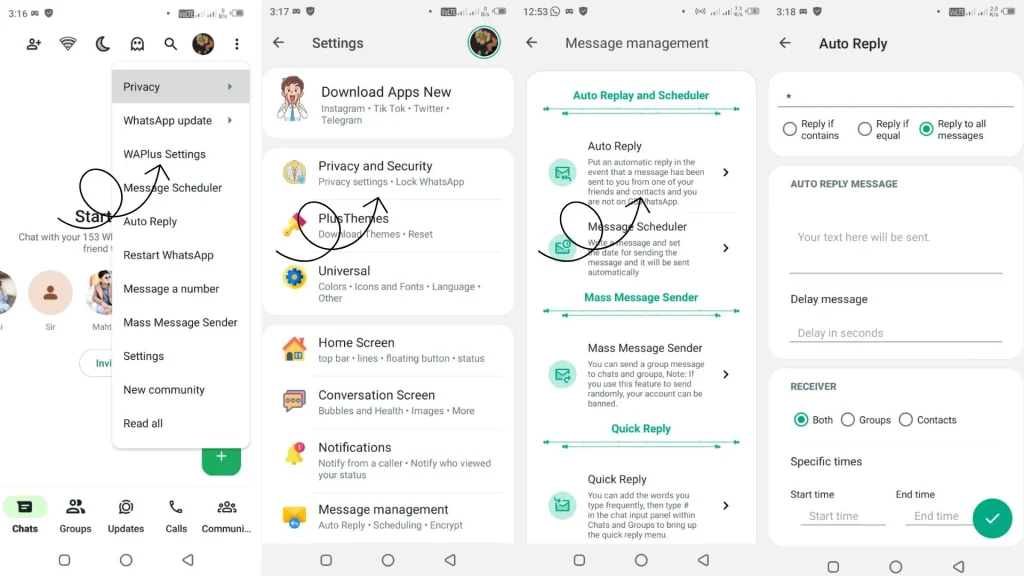
- Open WhatsApp Plus and go to the Menu (⋮) > WAPlus Settings.
- Look for the Privacy and Security Option.
- Scroll down and tap on Auto-Reply Feature.
- Type your custom automated message — keep it short and clear.
- Choose who should receive it: all contacts, selected people, or groups.
- Optional: Set keyword triggers, reply delay, or active hours to make automation smarter.
- Tap Save/Activate — and your replies will send automatically when someone messages you.
That’s it! Your smart messaging automation is ready to work in the background while you focus on what matters.
When to Use Auto Reply? (Best Use Cases)
- While working or in a meeting
- When driving
- During travel or flights
- If you’re offline due to network issues
- When you want to reply later without ignoring anyone
- During sleep or personal time
6 Benefits of Auto Reply
- You stay connected even when offline, ensuring no one feels ignored or left out.
- It helps you build better communication with friends, customers, and contacts who expect a quick reply.
- You can maintain a professional chat experience, especially when dealing with work or business messages.
- By using personalized Auto Message, you save time and avoid typing the same response again and again.
- Great for business users to share helpful details like hours or availability instantly.
- It promotes a stress-free messaging routine, giving you more control over your time.
Limitations of Auto Reply
- Some people may not like automated messages and may prefer direct responses.
- You might forget to turn it off, and automated replies may continue unintentionally.
- Auto replies may sometimes sound too generic or robotic if not customized properly.
- It may send unnecessary replies to broadcast messages or promotional chats.
- If overused, Auto Reply can reduce real-time engagement with your contacts.
- It may cause confusion when timing and context of the reply don’t match the conversation.
6 Auto Reply Message Ideas
- “Hey! I saw your message. I’m currently busy, but I’ll get back to you soon!”
- “Thanks for reaching out! I’m offline at the moment. Will reply once I’m available.”
- “Hello! Driving right now. I’ll text you back once I reach safely.”
- “Hey! Currently in a meeting. I will get back to you shortly.”
- “Thank you for messaging! My mobile network is weak. I’ll respond later.”
- “Hi! It’s late night here. I will reply to you tomorrow morning!”
Conclusion
Using Auto Reply in WhatsApp Plus is an easy way to stay responsive without constantly checking your phone. Whether you manage business chats, share order updates, or handle personal conversations, automated replies help keep communication fast, professional, and stress-free. Just customize your message, enable the feature, and let smart automation handle replies while you focus on other tasks.
Download the latest version of WhatsApp Plus APK from a trusted source like WAPlusInfo.com, set up your auto reply rules, and enjoy a smoother messaging experience every day.
If this guide helped you, make sure to bookmark our website, explore more tutorials in our Features Category, and feel free to comment or contact our support team if you have any questions — we’re here to help!
See this for more tips: