How to Diasble Google Play Protect and Install WhatsApp Plus Safely?
Learn the safest way to disable Google Play Protect and install WhatsApp Plus without errors. Simple, secure, and 100% working guide!
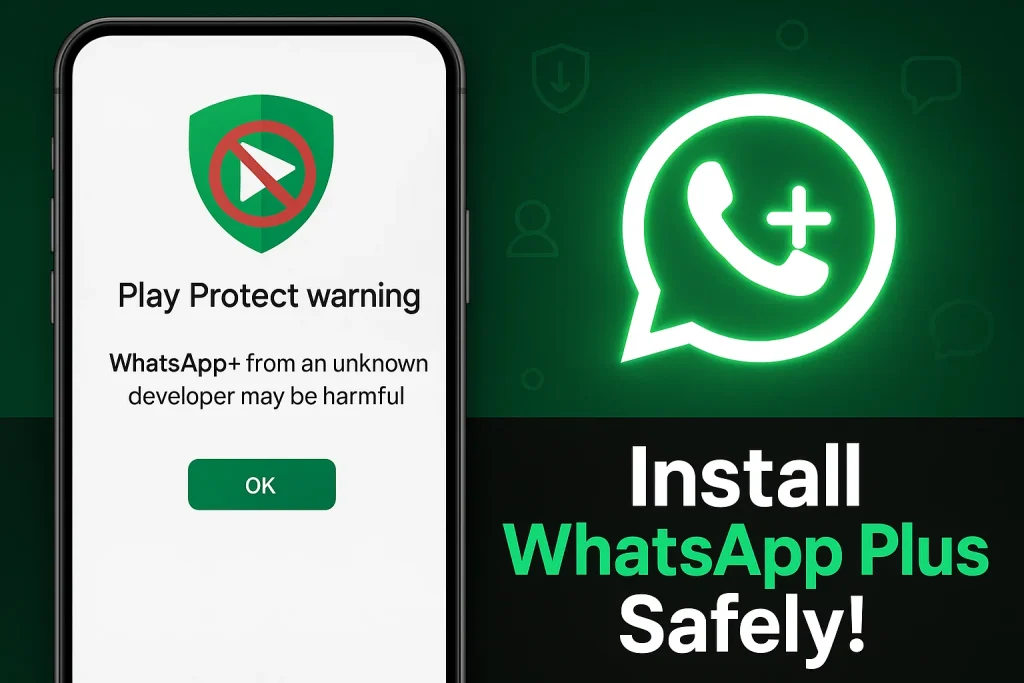
Installing modified apps like WhatsApp Plus often leads to Google Play Protect warnings, which stop the installation instantly. Users mainly want enhanced customization such as unique themes, custom fonts, and personalized chat styles, which the official WhatsApp doesn’t allow. They also look for extra privacy controls like hiding online status, disabling read receipts selectively, viewing deleted messages, and locking individual chats—features that give them more control over how they appear and interact on WhatsApp.
Here, you’ll learn the correct way to download WhatsApp Plus safely, check the file risk-free, and proceed step-by-step with essential security precautions. The goal is simple: access WhatsApp Plus features without compromising your phone’s safety.
Read more here:
What is Google Play Protect?
Google Play Protect is a safety tool on Android phones. It checks every app you install and makes sure the app isn’t harmful. If an app looks strange or comes from outside the Google Play Store, Play Protect may stop it to protect your phone. That’s why it warns you when you try to install apps like WhatsApp Plus, because Google doesn’t know who made them.
How to Disable Google Play Protect and Install WhatsApp Plus Safely
Follow these simple steps to install WhatsApp Plus APK without errors:
Step 1: Backup Your Chats
- Before switching apps, open WhatsApp, go to Settings → Chats → Chat Backup, and save your data. This keeps your messages safe.
Step 2: Enable “Install Unknown Apps”
- Go to Settings → Apps & notifications → Special app access → Install unknown apps.
- Allow your browser (like Chrome) to install APK files.
Step 3: Disable Play Protect (Temporary Only)
- Open the Google Play Store → tap your Profile Icon → Play Protect → Settings.
- Turn off Scan apps with Play Protect.
- This stops Google from blocking WhatsApp Plus installation.
Step 4: Download WhatsApp Plus from a Safe Source
- Choose a trusted website like WAPlusInfo.com that provides the latest WhatsApp Plus version.
- Avoid random sites that may include malware or fake apps.
Step 5: Install WhatsApp Plus APK
- Find the file in your Downloads folder and tap Install.
- Allow requested permissions — they’re needed for messaging.
Step 6: Verify and Restore Chats
- Open WhatsApp Plus, enter your number, and restore your backup if needed.
- Check that everything is working correctly.
Step 7: Turn Play Protect Back On
- For safety, go back to Play Protect and enable scanning again.
- This keeps your device protected from harmful apps in the future.
Is Disabling Play Protect Safe?
Turning off Google Play Protect is safe only when you know the app you’re installing is trusted, like a verified WhatsApp Plus APK from a reliable source. Play Protect helps block malware, fake apps, and unknown developers, so keeping it off for too long isn’t a good idea. The best approach is simple: disable it just for installation, install WhatsApp Plus, and then turn Play Protect back on to keep your phone protected.
Conclusion
Now you know how to disable Google Play Protect, install the WhatsApp Plus APK, restore your chats, and turn security back on for protection. These simple steps help you enjoy extra features like custom themes, privacy controls, and a more personalized messaging experience.
To stay safe, always download WhatsApp Plus from a trusted source like WAPlusInfo.com. Just turn off Play Protect for the install, complete the setup, and enjoy a smooth WhatsApp Plus experience. For more guides, tips, and helpful updates, explore our blog category and keep your device secure while using the apps you love.
You can learn more here: