How To Fix WhatsApp Plus Not Responding: Easy Solutions
Struggling with WhatsApp Plus freezing or crashing? Discover proven fixes and tips to make your app responsive and smooth again.
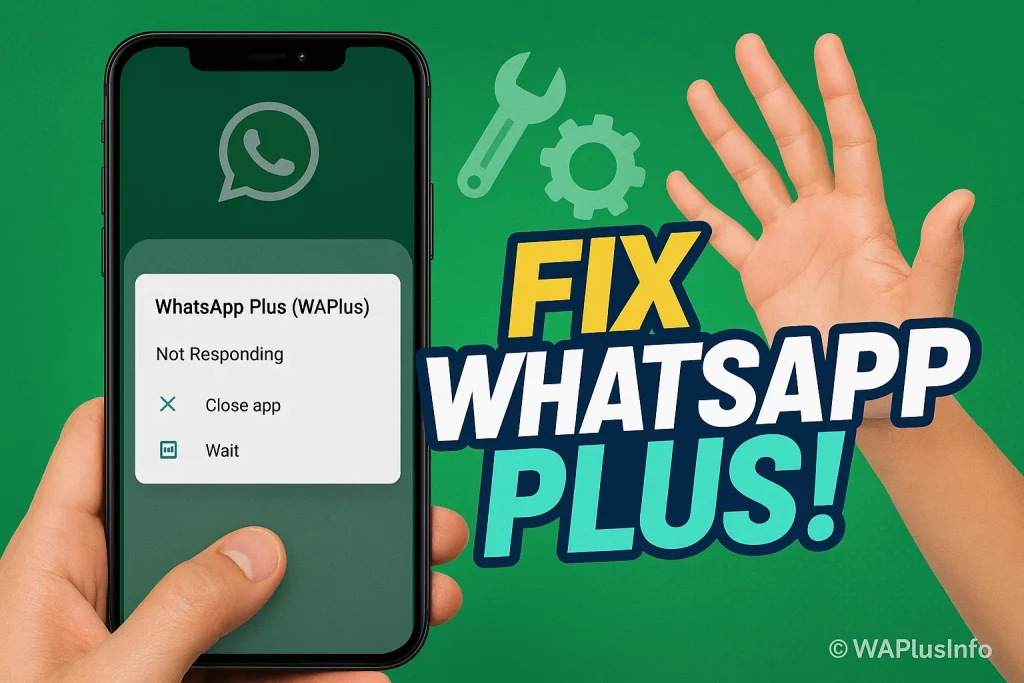
If your WhatsApp Plus not responding issue is driving you crazy, you’re not alone. Many users face sudden freezes, unexpected crashes, or blank screens while using this modded messaging app. I’ve helped countless users troubleshoot problems, so you’re in the right place. In this guide, you’ll get clear, reliable solutions without the confusing tech jargon, just simple steps that actually work and save you time.
For More Guide:
Common Reasons Why WhatsApp Plus Stops Responding
Outdated App Version
Running an outdated version of WhatsApp Plus is one of the most common reasons it stops responding. Older versions may have bugs or compatibility issues with newer Android or iOS updates, causing crashes or freezes. Always make sure you’re using the latest app update to enjoy smooth performance.
Corrupted App Files
Sometimes, the app’s files can get corrupted during installation or updates. This can lead to WhatsApp Plus freezing or not opening at all. Clearing cache or reinstalling the app usually fixes these corrupted data issues.
Low Storage or RAM Issues
If your device has low storage or limited RAM, WhatsApp Plus may struggle to function properly. Large media files, multiple apps running in the background, or heavy usage can make the app unresponsive. Freeing up space and closing unnecessary apps often restores performance.
Device or OS Compatibility Problems
Not all devices or operating system versions support modded apps like WhatsApp Plus. Using an incompatible Android or iOS version can cause unexpected app crashes. Checking system requirements before installing ensures smoother operation.
Network Connectivity Errors
A weak or unstable internet connection can make WhatsApp Plus seem like it’s unresponsive. Sometimes messages won’t send, media won’t load, or the app keeps freezing. Switching between Wi-Fi and mobile data or restarting your router usually helps solve these connectivity-related issues.
Quick Fixes for WhatsApp Plus Not Responding
- Restart your device
Sometimes, a simple device reboot can resolve temporary glitches causing WhatsApp Plus to freeze. - Force stop WhatsApp Plus
Head to your device settings and force stop the app to clear any temporary app hang issues. - Clear cache and app data
Accumulated cache files can make WhatsApp Plus unresponsive. Clearing them can fix crashes and improve speed. - Check storage and free up space
Low internal storage can cause the app to malfunction. Delete unnecessary files to give WhatsApp Plus more room. - Ensure stable internet connection
A weak network connection can make the app freeze or fail to send messages. Switch between Wi-Fi and mobile data if needed. - Close background apps
Running multiple apps eats up RAM, making WhatsApp Plus slow. Closing unnecessary apps improves performance. - Update WhatsApp Plus to the latest version
Outdated versions often trigger bugs and crashes. Always use a trusted source like WAPlusInfo for updates. - Check device updates
Updating your Android or iOS can fix system-level conflicts affecting WhatsApp Plus.
Advanced Solutions to Restore WhatsApp Plus Functionality
- Reinstall WhatsApp Plus safely
Uninstalling and reinstalling the app removes corrupted files that cause freezes. Backup chats first to avoid losing data. - Disable battery optimization for WhatsApp Plus
Some devices limit background activity, which can make the app unresponsive. Turning this off ensures smoother performance. - Check for system software updates
Updating Android or iOS solves compatibility issues and improves overall app stability. - Remove conflicting apps or mods
Other modded apps or third-party tools can interfere with WhatsApp Plus. Removing them prevents unexpected crashes. - Use a trusted version of WhatsApp Plus
Downloading from unverified websites can lead to malware, app errors, and unresponsiveness. Stick to recommended sources. - Clear residual files after uninstalling
Leftover cache or residual files from previous installs can affect functionality. Cleaning them ensures a fresh installation. - Monitor device storage and performance
Regularly check RAM and storage to prevent freezes and maintain smooth operation.
Tips for Preventing WhatsApp Plus From Becoming Unresponsive Again
- Keep your app updated regularly
Staying on the latest WhatsApp Plus version prevents freezes and crashes. - Avoid installing untrusted add-ons or mods
Third-party plugins can conflict with WhatsApp Plus, causing app errors. - Maintain sufficient storage and memory
Deleting junk files and monitoring device performance keeps the app responsive. - Restart your device occasionally
A quick device reboot refreshes memory and clears temporary glitches. - Limit background apps
Closing unnecessary apps ensures WhatsApp Plus stays fast and smooth. - Backup your chats regularly
Protects messages and media in case of app crashes or reinstalling. - Monitor network stability
Using reliable Wi-Fi or strong mobile data prevents connectivity-related freezes.
When to Consider Switching to the Official WhatsApp App
If you’ve tried all the troubleshooting steps and advanced fixes but WhatsApp Plus keeps freezing, crashing, or behaving unpredictably, it might be time to switch to the official WhatsApp app. Unlike modded versions, the official app receives regular updates, security patches, and bug fixes, ensuring a stable and reliable messaging experience. Switching can also protect your chats from data loss, malware, or account bans, giving you a safer, smoother alternative.
Final Thoughts
Dealing with WhatsApp Plus not responding can be frustrating, but most issues have simple, effective fixes. From clearing cache and updating the app to checking network stability and device compatibility, these steps cover everything you need to get your chats running smoothly again. Advanced solutions like reinstalling safely, disabling battery optimization, or removing conflicting mods ensure long-term stability. Following these tips not only resolves crashes but also keeps your messaging experience consistent and reliable.
While WhatsApp Plus can offer extra features, sometimes switching to the official WhatsApp app might be the safest choice for uninterrupted use. If you’re still facing glitches or have questions, don’t hesitate to leave a comment, share your experience, or reach out to support. Your feedback helps others, and seeking guidance ensures you never miss a message or risk losing important chats.
Read Also: