How To Hide Blue Ticks in WhatsApp Plus Easily
Learn how to hide blue ticks in WhatsApp Plus with simple, safe steps to boost privacy and control your chats effortlessly.
If you’re tired of people knowing exactly when you’ve read their messages, you’re not alone—many users want more privacy but don’t know where to start. As someone who tests messaging apps daily, I understand that keeping your chats private is just as important as staying connected, and that’s why this guide focuses on a safe, simple method that actually works. Here, you’ll learn how to hide blue ticks in WhatsApp Plus without breaking anything in the app, along with practical tips that protect your data and enhance your experience.
Also Read:
What Are Blue Ticks in WhatsApp Plus?
Blue ticks are the small indicators that show when someone has opened and read your message, and in WhatsApp Plus they work almost the same way as the official app—once the recipient reads your chat, the grey ticks turn into blue ticks instantly. While this feature helps people know their message was seen, it also creates pressure because you can’t always reply immediately, right? That’s why many users prefer to hide blue ticks to enjoy more privacy, avoid misunderstandings, and control their own response time without feeling watched. With WhatsApp Plus privacy settings, you get more flexibility to manage read receipts in a way that fits your comfort level, making your conversations smoother and stress-free.
How to Hide Blue Ticks in WhatsApp Plus
- Back up your chats first — open WhatsApp Plus > Chats > Backup (or use your phone’s backup app). It’s a small safety step that keeps your messages safe before changing privacy settings.
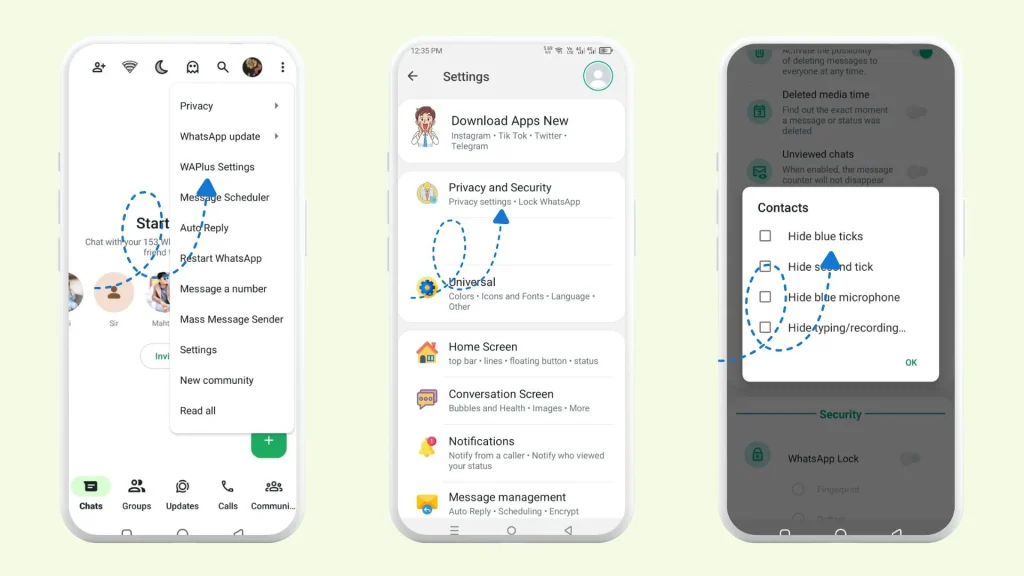
- Open WhatsApp Plus and tap the three-dot menu (top-right) to access Plus Settings — this is where the app’s extra features live compared to the official app.
- Go to Privacy (sometimes labeled Privacy & Security). Look for options related to read receipts, blue ticks, or message view — mods group these controls under privacy.
- Find the toggle for Read Receipts or Blue Ticks and switch it off to hide blue ticks from people who message you; this usually stops the sender from seeing the double blue check.
- Check group and broadcast settings separately — many versions have distinct controls for groups, broadcasts, and individual chats, so disable read receipts where you want privacy.
- If there’s an advanced option like “Hide for specific contacts” or “Freeze last seen / hide view status”, use it to fine-tune who sees your activity without turning off everything.
- After changing settings, force-close and reopen the app (or restart your phone) to ensure the new WhatsApp Plus privacy options apply correctly.
- Test the change with a trusted contact: ask them to send a message and confirm whether the blue ticks stay hidden — practical checks reduce surprises.
- Remember the trade-off: disabling read receipts means you also won’t see others’ read status — weigh privacy vs convenience before finalizing.
- Keep your app updated and download APKs only from trusted sources to reduce security risks when using mods — this is a best practice from testers and privacy experts.
- Quick tip: if a step looks different in your version, look for similar wording like “Read Status”, “Seen”, or “View Receipts” — mod menus vary but the goal is the same.
Pros and Cons
Pros
- You get more privacy control, allowing you to read messages without pressure to reply instantly.
- It helps reduce misunderstandings because people can’t assume you’re ignoring them after the blue ticks appear.
- Gives you the freedom to manage conversations at your own pace, improving your overall chat experience.
- Works perfectly with other WhatsApp Plus privacy features, creating a more relaxed and personalized messaging style.
Cons
- You also lose the ability to see when others have read your messages, which can be inconvenient.
- Some people may feel confused or think you’re unavailable because they can’t see your read receipts.
- Not all features work smoothly on every version of the mod, so occasional glitches may appear.
- Since WhatsApp Plus is a modified app, relying heavily on its privacy tools carries minor security risks if downloaded from untrusted sources.
For More Pros and Cons: WhatsApp Plus Pros & Cons: Hidden Truths Revealed
Is It Safe to Hide Blue Ticks in WhatsApp Plus?
Hiding blue ticks in WhatsApp Plus is generally safe from a usability perspective because it’s simply a built-in privacy tool. The actual safety concern comes from the modded app itself, not the feature, so it’s important to use secure sources and stay cautious.
Privacy Advantages
Using this feature gives you more control over your read receipts, letting you check messages quietly without alerting anyone. It’s a great choice for users who want private messaging, flexible reply timing, and a calmer overall chat experience.
Risks of Using Modified Apps
The real risk lies in the fact that WhatsApp Plus is unofficial. Modded apps don’t have the same encryption, protection, or verification as the official WhatsApp. There’s always a possibility of data leaks or account restrictions if you download the APK from an unsafe source—so reliable sites matter.
Now More About Safety Click Here: Is WhatsApp Plus Safe, Encrypted or Risky to Download?
Conclusion
Hiding blue ticks in WhatsApp Plus gives you more freedom, better control over your privacy settings, and a stress-free messaging experience. Throughout this guide, you learned how the feature works, why many users prefer to disable read receipts, and the simple steps to activate it. We also covered the pros and cons, and essential safety tips so you can use WhatsApp Plus confidently and responsibly. With the right settings in place, you can enjoy smoother chats without compromising comfort.
Still, it’s important to stay smart while using any modded app. Always keep a backup of chats, download APKs only from trusted platforms like WAPlusInfo, and avoid linking sensitive data to protect your privacy. If you’re unsure about any step or something doesn’t work as expected, feel free to drop a comment below, share this guide with others, or contact the support team for help.
For More Features: