How to Schedule Messages on WhatsApp Plus
Learn how to schedule messages on WhatsApp Plus with this easy step-by-step guide. Boost productivity and never miss important messages again.

Scheduling messages in WhatsApp Plus is a smart way to stay organized and never miss important communication. Whether you want to send birthday wishes at midnight, plan professional reminders, or keep up with international contacts, the Message Scheduler ensures timely delivery without manual effort. It improves communication flow and saves time, especially when handling multiple conversations daily.
The benefits of scheduling messages go beyond convenience. It helps business users automate follow-ups, share promotional updates, and improve customer engagement. For personal use, it ensures thoughtful and timely messages even when you’re busy or offline. With WhatsApp Plus Scheduled Messages, you get better planning, increased productivity, and a more stress-free messaging experience.
Only for you to visit:
What Is Message Scheduling in WhatsApp Plus?
Message Scheduling in WhatsApp Plus lets you write a message in advance and automatically send it at a specific time you choose. It’s perfect for timely reminders, birthday greetings, or work-related follow-ups, especially when you’re busy or offline. With this smart automation feature, WhatsApp Plus helps users stay organized, maintain consistent communication, and avoid missing important messages — all without extra effort.
How to Schedule Messages on WhatsApp Plus
On Android
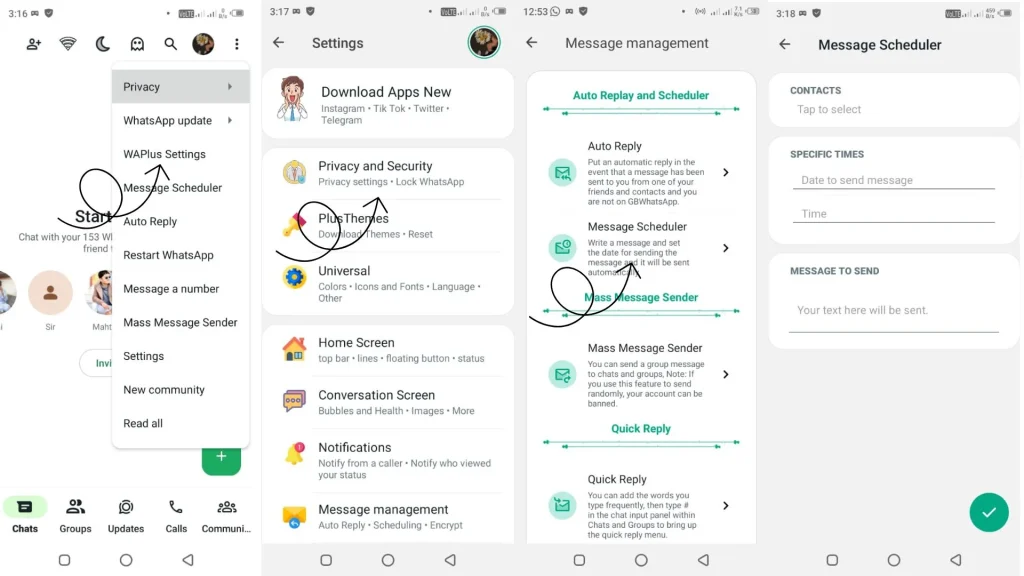
- Open WhatsApp Plus and go to the chat where you want to send a scheduled message.
- Type your message and tap the Plus Menu or Message Scheduler icon.
- Choose the date, time, and recipient details for auto-sending.
- Give necessary permissions so WhatsApp Plus can run in the background.
- Tap Schedule, and the app will send it automatically at the set time.
On PC / Laptop
- Install an Android Emulator and download WhatsApp Plus APK inside it.
- Set up your account and open the chat where you want to schedule a message.
- Write the message → Select Schedule option → Set the delivery day & time.
- Keep the emulator running in the background so the scheduled message gets delivered properly.
For more further details to download WhatsApp Plus on PC/Laptop visit our here: WhatsApp Plus for PC: Features, Installation, and Tips
Best Practices for Using Message Scheduler Effectively
- Always double-check the date and time before you schedule a message to avoid sending it too late or too early.
- Keep WhatsApp Plus running in the background with proper permissions enabled so the scheduled message delivers successfully.
- Use the Message Scheduler for important reminders, follow-ups, and events to stay consistent and organized in communication.
- Review scheduled messages regularly and edit or cancel anything that’s outdated or no longer relevant.
- Avoid scheduling too many automated texts at once to maintain a natural chat experience with your contacts.
- Ensure your device has stable internet and enough battery power when the message is scheduled to send.
Conclusion
WhatsApp Plus Message Scheduling is a simple yet powerful way to send messages on time, stay organized, and never miss important moments again. It helps personal users and professionals manage communication smoothly with smart automation and better control. For more helpful guides like this, WAPlusInfo.com our website and visit our blog category for more related articles!
If you want to learn more: